

https://vnish-firmware.com/ru/bitmain-firmware-stock In the dropdown list, select your miner model (amlogic). Then download the SD image. 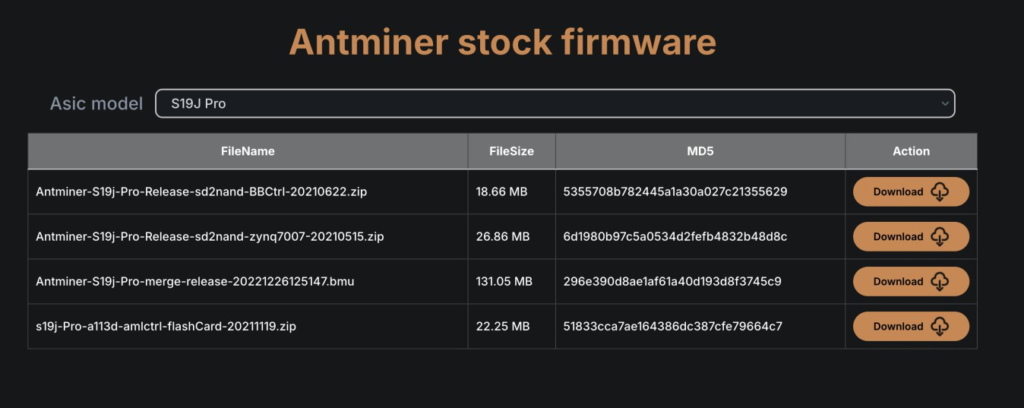 The downloaded file will be in archive format. It needs to be extracted to any convenient location on your computer. You can use either the built-in Windows tools or any archiver of your choice, such as WinRAR.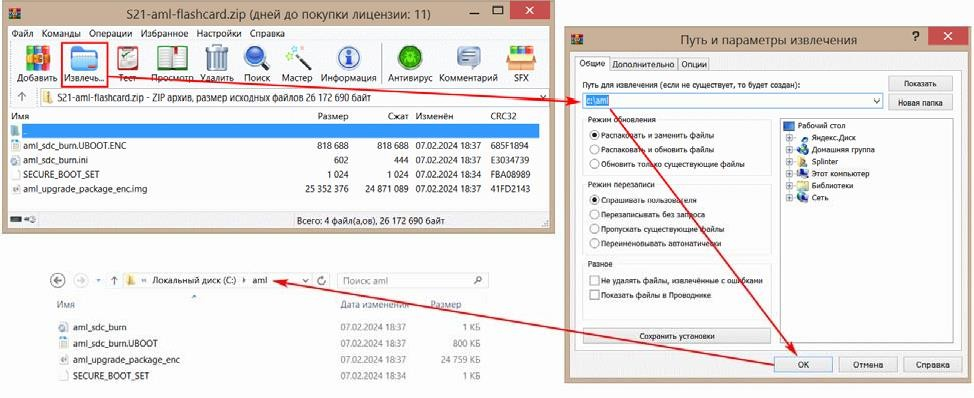
The downloaded file will be in archive format. It needs to be extracted to any convenient location on your computer. You can use either the built-in Windows tools or any archiver of your choice, such as WinRAR. Download and run the installer file Setup_v2.2.0.exe During installation, press the Next button in all windows and Install in the last window, without changing any settings. At the folder selection step – remember/write down this path – it will be needed later. 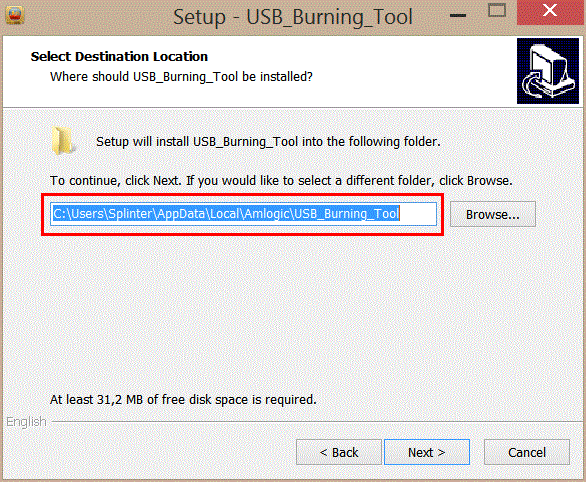 After the program itself is installed, the Device Driver Installation Wizard will start automatically. Here as well, press Next in all windows and finally Finish. Copy the included license file SECURE_BOOT_SET to the license folder in the program installation folder.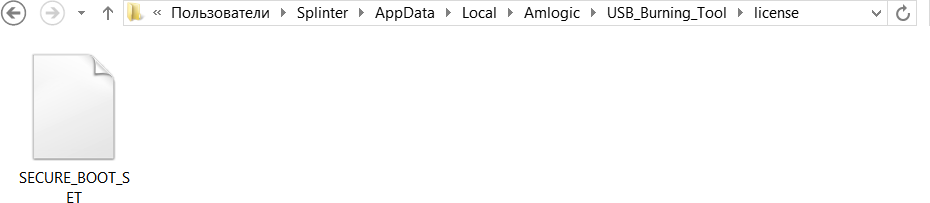
After the program itself is installed, the Device Driver Installation Wizard will start automatically. Here as well, press Next in all windows and finally Finish. Copy the included license file SECURE_BOOT_SET to the license folder in the program installation folder. Select English interface language: 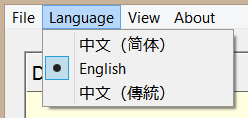 Open the firmware file by selecting the folder where you extracted the files in step 1:
 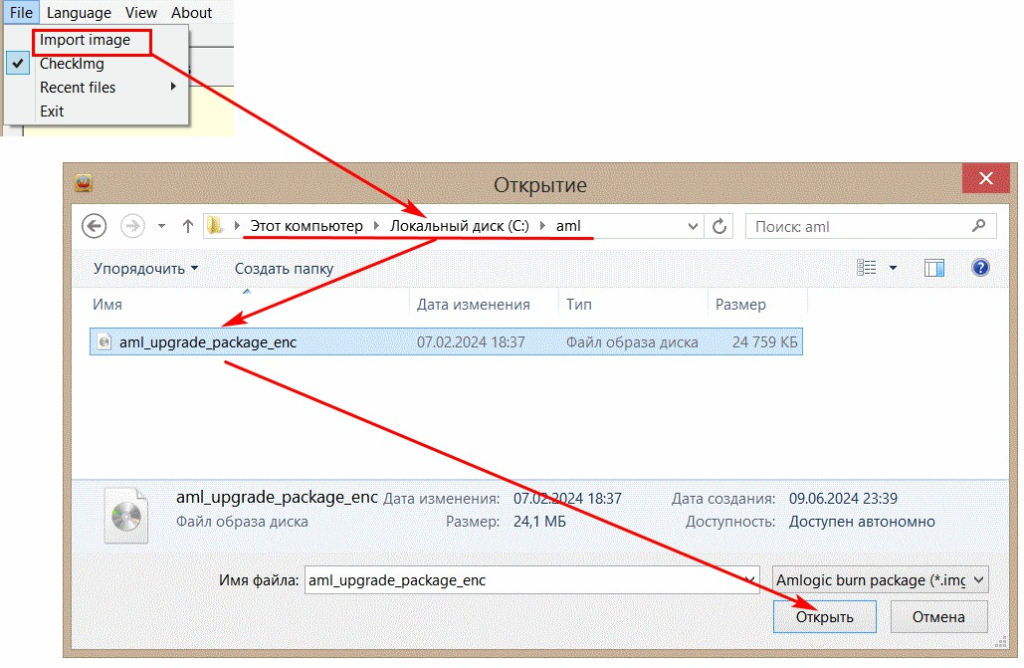 In the main program window, configure the Configuration area as shown in the image below. Check ONLY the boxes shown; otherwise, you may permanently damage the board.
Open the firmware file by selecting the folder where you extracted the files in step 1: In the main program window, configure the Configuration area as shown in the image below. Check ONLY the boxes shown; otherwise, you may permanently damage the board. On the control board, short the JP1 jumper using a jumper. Connect a USB‑microUSB cable with one end to the control board and the other end to the PC. Power on the control board. Since the drivers are copied to the system automatically during the USB_Burning_Tool installation, they will either install automatically when the board is connected, or the New Hardware Installation Wizard (drivers) will start. In the latter case, simply agree to everything the installation wizard suggests. Once the drivers are successfully installed, a line with the newly connected device (control board) will appear in the top table of the USB_Burning_Tool main window. 
Everything is ready for flashing. Press the Start button in the main window of the USB_Burning_Tool program. The status field will show the progress percentage. When the process reaches 100%, a success message will appear. This will take no more than a minute.  Press the Stop button and close the USB_Burning_Tool program.
Press the Stop button and close the USB_Burning_Tool program.